
The Laser247 Login is the same username and password across browser and Android app, with biometric on the app and two-step verification on the browser as upgrades. Sessions on each device run independently, so signing in on a phone does not sign you out on a laptop, and a stolen device cannot lock the rest of your account.
Below: how to sign in fast, the three ways to do it, biometric setup, password recovery, 2FA, common login problems, and what to do if your account is compromised.
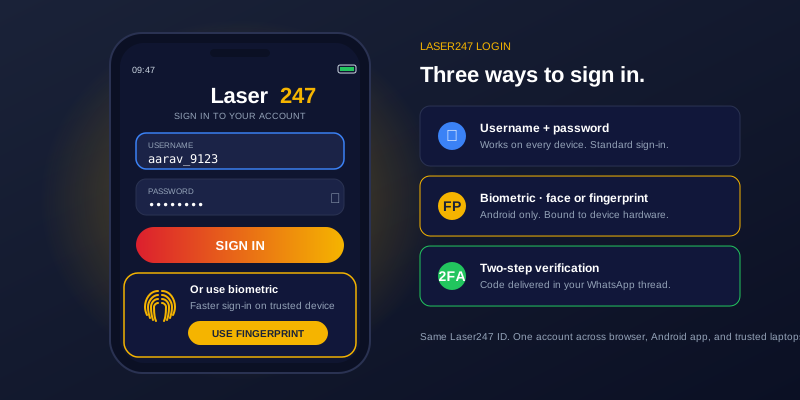
Sign Into Laser247 in Five Seconds
The first time you sign in takes a little longer because the agent’s temporary password needs replacing. Every login after that is a five-second routine.
Open the right URL. The sign-in page sits behind the same address as the Laser247 homepage. Use your bookmark, or type the URL by hand if you do not have one. Lookalike domains with single-character substitutions are the most common phishing entry point in Indian betting; checking the URL before typing credentials is worth the half-second it costs.
Enter your username and password. These are the credentials the WhatsApp agent issued when they created your Laser247 ID, or whatever you changed them to on first sign-in. The password field is case-sensitive — capitals matter.
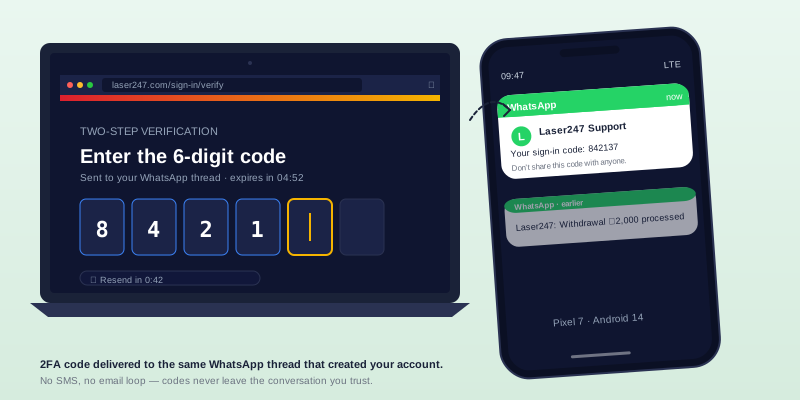
Confirm the device if prompted. A new device, a new browser, or a sign-in from an unusual location triggers a one-time code delivered to the WhatsApp number tied to the account. The code is six digits, valid for ten minutes, and used once. Enter it and the device gets remembered for the next thirty days.
Tap the biometric prompt on the app. If you are using the Laser247 App and have biometric enabled, the password step is skipped on every sign-in after the first. Face or fingerprint, two seconds, you are in.
You are signed in. The dashboard opens to your wallet balance, any open positions, recent transactions, and the markets section. Funding the account is a separate flow — the Deposit and Withdrawal Guide handles that end of things.
If the sign-in feels slower than five seconds on a familiar device, the issue is usually a stale cookie or an outstanding browser session — both covered in the troubleshooting section below.
Three Ways to Sign In, Compared
Three pathways into the same account, each tuned for a different use case.
| Method | Speed | Best For | Trade-Off |
|---|---|---|---|
| Browser + password | Standard | First-time setup, desktop trading sessions | Slowest, typed each time |
| App + biometric | Fastest | Live cricket, mobile use | Android only |
| Browser + 2FA | Standard + verification | Shared computers, untrusted networks | Extra step on every new device |
Most users settle into a mix — biometric on the app for daily access, password plus 2FA on a desktop browser for longer sessions when more screen real estate matters. There is no penalty for using all three on the same account. The platform recognises each as a separate device and updates the wallet across all of them simultaneously.
The most common reason users pick a single method and stick with it is convenience, not preference. Biometric on the app removes the password entirely from the daily flow, which is why it ends up being the default for anyone who installs the app.
Set Up Biometric Login on the App
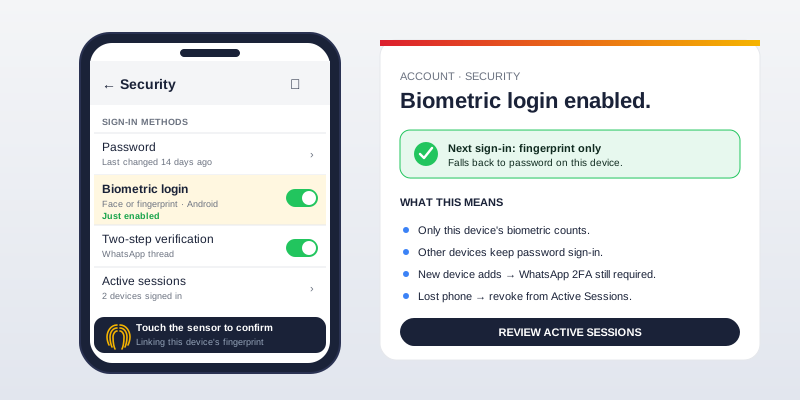
Biometric login on the Laser247 App is the fastest sign-in on the platform. Setup takes one minute and only needs to be done once.
Sign in with your password first. Biometric cannot bind without an authenticated session, so the very first sign-in on the app uses the password you would use in a browser. Type it carefully — the lock on the app after several failed attempts is harder to lift than the equivalent lock on the browser, because the app cannot reissue an OTP without a working session.
Open Settings inside the app. From the bottom navigation, tap your profile icon, then Settings, then Security. Biometric login appears as a toggle near the top of the security list.
Toggle Biometric Login on. The app prompts your phone for biometric confirmation — Face Unlock, Fingerprint, or whichever biometric you have enrolled at the OS level. The match happens on the phone, not on the Laser247 server. Nothing biometric ever transmits.
Confirm your password one more time. A final password entry binds your credential to your biometric. This is the step that lets the app skip the password on future sign-ins.
Use biometric from this point on. The next sign-in (after a sign-out, or after the app’s auto-lock timeout) will prompt for biometric instead of the password. Password remains the fallback if biometric fails three times in a row, or if the phone’s biometric data has changed since binding.
Biometric reset is the same flow in reverse. Disable the toggle, sign in once with password, re-enable. The system rebinds the credential to whatever biometric is currently enrolled on the phone.
Reset a Lost or Forgotten Password
Password recovery on Laser247 runs through the WhatsApp number tied to the account. There is no email-based reset, no security questions, and no automated recovery form on the website. Every reset goes through the agent.
| Method | Speed | Requirements | When to Use |
|---|---|---|---|
| WhatsApp agent reset | Under 30 minutes | Active WhatsApp number, name on account | Standard recovery, most cases |
| In-app forgot password | 5 minutes | App installed, biometric still working | App-only password reset |
| Agent-verified reset | 2 to 6 hours | Identity confirmation, video call sometimes | Old accounts, lost WhatsApp number |
| Full account recovery | 1 to 3 days | Identity documents, account history | Lost number plus lost device |
The fastest path is the in-app forgot-password flow on a device that still has biometric working. Biometric proves identity without needing a working WhatsApp thread, and the app can reset the password against the verified session directly. This works only if you set up biometric before you lost the password.
The standard path is the WhatsApp agent reset. Open the same thread that created your account, type the words “I forgot my password”, and the agent will verify a few account details — name on the account, registered mobile, last deposit method — before issuing a new temporary password. The new password works on first use and must be changed immediately on sign-in, exactly like the original temporary password at signup.
If your WhatsApp number is also lost, the recovery shifts to an agent-verified reset. The agent will arrange a brief identity check, sometimes a short video call to confirm you are the account holder, and issue new credentials tied to your new number. Allow several hours for this — the verification is intentionally slower because the risk of impersonation is higher.
Full account recovery is the slowest path and applies when both the WhatsApp number and the device are lost simultaneously. Customer Support handles these cases case by case.
Use Two-Step Verification on Browser Login
Two-step verification on Laser247 sends a six-digit code to your WhatsApp thread on any browser sign-in from a device the platform does not recognise. The code is valid for ten minutes, used once, and required even if the password is correct.
2FA is on by default for new accounts. Older accounts can switch it on in Settings → Security → Two-Step Verification. There is no reason to turn it off — a stolen password without the code is useless, and the cost of the extra step on a new device is six seconds.
The verification triggers on three events: a new device (different phone or different computer), a new browser on a known device (different browser, or the same browser after a deep cache clear), and a sign-in from a location the platform has not seen before for your account. Routine sign-ins from a known device on a known network do not trigger the extra step.
The US Cybersecurity and Infrastructure Security Agency publishes practical guidance on enabling multi-factor authentication across personal accounts. The same principle that protects email and banking applies to a betting account: a second factor turns a stolen password from a breach into nothing more than an inconvenience.
Fix Common Laser247 Login Problems
The login issues that recur, and the order in which to try fixes.
“Invalid username or password” on the right credentials.
Three causes. First, caps lock — passwords are case-sensitive and an accidental caps lock at the start of typing breaks every attempt. Second, an autofill mismatch from a saved browser password that has not been updated since your last password change. Clear the saved login and retype manually. Third, a username typo: the username field accepts any string, so a single transposed letter fails silently with the same error message.
Account locked after too many attempts.
A login lock activates after five failed password attempts in fifteen minutes. The lock lifts automatically after thirty minutes, or immediately through the WhatsApp agent. Do not open a second account during a lock — duplicate accounts violate the terms and convert a temporary lock into a permanent one.
OTP for new-device verification never arrives.
The OTP delivers to the WhatsApp number tied to the account, not by SMS. Check WhatsApp first, including any thread filtered into the “Other” or “Unknown” inbox. If the number you used at signup is no longer active, OTP delivery will fail and the recovery shifts to the agent-verified flow above.
Stuck on the loading spinner after entering credentials.
A stale session cookie is usually the cause. Open a private or incognito window and sign in from there. If the loading completes in the incognito window, return to the original browser and clear cookies for the Laser247 domain only — clearing all cookies is unnecessary.
Biometric prompt does not appear on the app.
The biometric binding has reset, usually because the phone’s biometric data changed (re-enrolled fingerprint, new face data). Sign in once with the password, then re-enable biometric in Settings → Security. The binding flow at the top of this page covers the steps in full.
Sign-in succeeds but the dashboard does not load.
Something in the app or browser cache is stale. Clear the app cache (Settings → Apps → Laser247 → Storage → Clear cache) or the browser cookies for the domain, then sign in again. If that does not help, the issue sits with Customer Support on the WhatsApp thread.
Lock Down a Shared Account With Session Hygiene
A signed-in account on a shared or public computer is a problem waiting to happen. The discipline that prevents most of those problems.
- Sign out fully when you finish the session. Closing the tab keeps the session alive on the server. Click the profile icon, click Sign Out, then close the tab.
- Never save the password in a shared browser. Browser password managers are convenient on personal devices and dangerous on shared ones. The next person to use the computer should not be able to autofill into your account.
- Clear cookies for the Laser247 domain after a session on a public computer. Cookies persist the session for several hours even after a sign-out, depending on browser settings.
- Use the app on your personal phone, the browser only on personal devices. Public computers are for one-off check-ins at most. The app on a phone you own is dramatically safer for any session that lasts more than a few minutes.
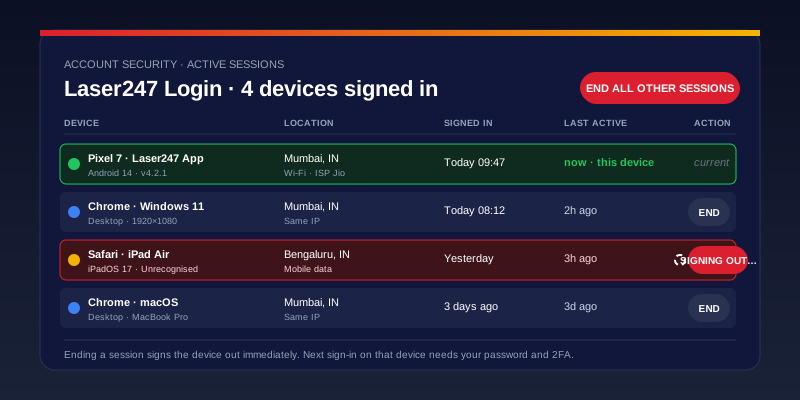
- Review active sessions periodically. Settings → Security → Active Sessions lists every device currently signed in. Anything unfamiliar gets ended immediately and triggers a password change.
What to Do If Your Laser247 Login Is Compromised
If you have any reason to believe your account has been accessed by someone else — an unrecognised login alert, a withdrawal you did not authorise, a session you did not start — the response order matters.
- Lock the account first. Send a message to the WhatsApp agent asking for an immediate account lock. The lock takes seconds and prevents any further activity, including any withdrawal already in progress.
- Change the password from a known-safe device, not from the device you suspect was compromised. A fresh phone or a clean browser session is the right starting point.
- Review the recent activity log. Settings → Security → Activity History shows every login, every bet, every deposit, and every withdrawal across the last 90 days. Flag anything you did not do.
- Enable two-step verification if it was off. Settings → Security → Two-Step Verification → On.
- End every active session. Settings → Security → Active Sessions → End All. This forces every device, including the attacker’s, to re-authenticate from scratch.
- File a formal complaint with national authorities if money was moved. The UK National Cyber Security Centre’s guidance on responding to a data breach lists the steps to take and the records to keep regardless of which country you are in.
FAQ
How do I sign into my Laser247 account?
Open the Laser247 site or app, enter your username and password, and confirm the device check if one appears. If you are on the Android app with biometric enabled, sign-in is a face or fingerprint scan instead.
Do I use the same login for the app and the browser?
Yes. One username, one password, one account across every device. Each device counts as its own session, so a sign-in on a phone does not sign you out on a laptop.
What happens if I lose my password?
Open the WhatsApp thread that created your account and ask the agent to reset it. A new temporary password arrives in the same thread, valid for one use, and must be changed on first sign-in. The full recovery process is covered in the password reset section above.
Why am I being asked for an OTP every time I sign in?
The platform treats each device-and-browser combination as a separate sign-in environment. If you clear cookies frequently, use private browsing, or switch between devices, the system sees each new session as a new environment and requests a verification code. Letting cookies persist on devices you trust stops the OTP prompt on those devices.
Can I stay signed in on multiple devices at the same time?
Yes. There is no device limit and no penalty for parallel sessions. The wallet updates in real time across every signed-in device.
How do I enable two-step verification?
Settings → Security → Two-Step Verification → On. Codes deliver through your WhatsApp thread. New accounts have 2FA on by default; older accounts may need to switch it on manually.
What if I never received my temporary password at signup?
Reply in the WhatsApp thread asking for it. The agent reissues immediately during business hours. The temporary password should arrive in the same thread as your username, not as a separate SMS or email.
Can I change my Laser247 username?
Usernames are fixed at account creation and cannot be changed afterwards. If you need a different username, the cleaner path is to close the existing account through the agent and open a fresh one — though most users find the username matters less than they thought once it stops being visible on every page.
How do I log out of all devices at once?
Settings → Security → Active Sessions → End All. Every signed-in device immediately loses its session and has to re-authenticate. Useful after a lost phone, after a public-computer session, or whenever you want a clean slate.
What do I do if my account got hacked?
Lock the account first through the WhatsApp agent, then change your password from a safe device, then review the activity log and end every active session. If money was moved without your authorisation, file a formal report with cybercrime authorities. The full sequence is covered in the compromise section above.